
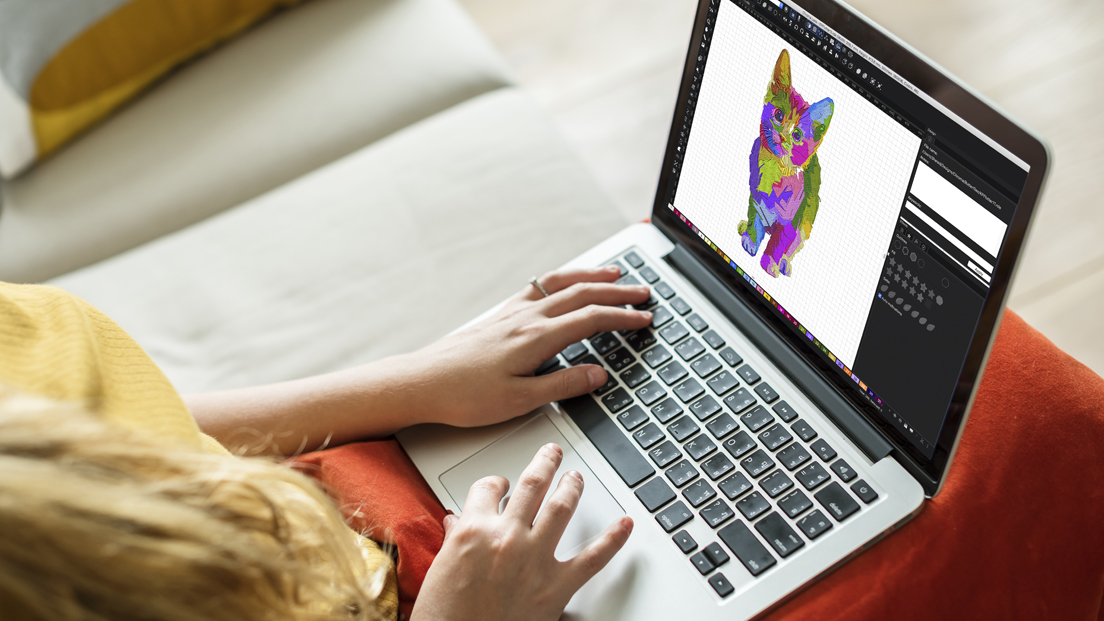

You just bought a Brother embroidery machine. You unpack it, set it up, thread the needle, and then hit a wall. The machine keeps asking for a PES file. But all you have is a JPG of your dog, your logo, or that funny quote your friend drew on a napkin. Panic sets in. What is a PES? Why can’t your machine just read a normal picture? Here is the deal: embroidery machines are picky eaters. They do not digest pixels. They only eat stitch-by-stitch instructions inside formats like PES (that is Brother’s native language), DST, or EXP. So you need to Convert JPG to PES before your needle ever moves.
The good news? You have options that take anywhere from two minutes to two hours, depending on how perfect you want the final sew-out.
I have helped home hobbyists and commercial shops crack this exact problem. Some solutions are free and fast but ugly. Others cost a few bucks and look like magic. I will walk you through every single method, tell you which one fits your situation, and warn you about the traps that turn a cute design into a tangled nightmare.
Let me save you from wasting thread, stabilizer, and your last shred of patience.
The Honest Truth: No One-Click Wonder Exists
I need to burst a bubble right now. You see ads online that say “Convert JPG to PES instantly for free.” They are lying. Or they are selling you a half-baked auto-digitizer that spits out garbage.
Why? Because converting a flat picture into embroidery stitches requires human decisions. The software has to guess where to put satin stitches versus fill stitches. It has to guess how dense to sew. It has to guess pull compensation. And most auto-tools guess wrong.
That said, you can get from JPG to PES quickly. You just have to choose your priority: speed, quality, or cost. Pick two. If you want fast and cheap, the quality will hurt. If you want high quality and fast, you pay a pro. If you want cheap and high quality, you wait for a human digitizer on a slow day.
I will show you all three paths. Then you decide.
Method 1: Auto-Convert Online in Under 5 Minutes (For Simple Designs)
Let us start with the fastest option. Websites like EmbroideryWare, Wilcom TrueSizer, or MyEditor offer free or cheap JPG to PES conversion. You upload your picture, wait ten seconds, and download a PES file.
This actually works fine for three specific cases. First, big bold shapes with no small text. Think a heart, a star, a simple flower. Second, black-and-only-black designs. No shading, no gradients. Third, personal projects where you do not mind a little wonkiness.
I used this method to stitch my nephew’s name on a backpack. The letters came out slightly squished, but a six-year-old did not notice. For a business logo? No way. For a gift? Totally fine.
The catch is that auto-converters cannot handle fine details. A 4-point letter becomes a blob. A cat’s whiskers disappear. A company seal with tiny text turns into a muddy rectangle. And you have no control over stitch density, so thick fabrics like caps will pucker like crazy.
Still, for a weekend project, five minutes from JPG to PES feels like a superpower. Just lower your expectations and test on scrap fabric first.
Method 2: Use Free Software Like InkStitch (30 Minutes, Zero Dollars)
If you have a little more time but zero budget, download Inkscape and install the InkStitch extension. This is open-source digitizing software. It has a learning curve, but it is completely free and surprisingly powerful.
Here is how you do it. Open Inkscape, import your JPG, and trace it manually with the pen tool to create a vector. Then open the InkStitch panel and select your shapes. Choose satin stitch for letters and thin lines. Choose tatami fill for large areas. Set your stitch density to 4 lines per millimeter for most fabrics. Then click “Generate PES.”
The first time you try this, you will curse my name. You will miss a setting and get ten thousand jump stitches. You will sew out a design that looks like a spider had a seizure. That is normal. We all start there.
But after two or three practice runs, you can reliably convert JPG to PES for free. Home embroiderers love this method because they can tweak everything. Want less underlay for a soft baby blanket? You can do that. Want more pull compensation for a thick sweat fleece? You can do that too.
Commercial shops sometimes use InkStitch for quick samples before sending the final job to a paid digitizer. It saves them from paying $30 for a test that might not work.
Method 3: Hire a Same-Day Digitizer (Best for Business)
Here is the pro move. Go to a digitizing service like VectorDoctor, Absolute Digitizing, or even a top-rated Fiverr seller. Pay $15 to $25. Send them your JPG and tell them three things: your fabric type (cap, polo, towel), your finished size in inches, and your machine (Brother, so PES format). Then ask for a 4-hour rush.
I have done this over two hundred times for my apparel brand. The digitizer sends back a perfect PES file. I load it into my multi-head machine. It sews clean on the first try. No tweaking, no test sew-outs, no wasted hats.
For commercial embroidery, this is the only real answer. Your time is worth more than messing with auto-tools or learning InkStitch for three weeks. Pay the expert. They factor in underlay, pull comp, and stitch angles automatically. They know that a left chest logo needs different settings than a full back design.
And here is a secret: many digitizers keep a library of common fonts and shapes. If your JPG uses Arial or a basic star, they might already have a pre-digitized version. That speeds up the rush order even more.
The one downside? Same-day rush costs extra. Usually $10 to $15 on top of the base price. But if you need to convert JPG to PES for a client order that ships tomorrow, that fee feels like a bargain.
The Brother Machine Quirks You Must Know
Not all PES files are the same. I learned this the hard way. Different Brother models handle stitch count limits differently. Your old PE500 might max out at 50,000 stitches. A newer PR680 handles 200,000 easily.
Always check your machine’s manual for the maximum stitches per design. If your converted PES file exceeds that, the machine either refuses to load it or crashes halfway through the sew-out. Nothing ruins your day like a crashed machine with a half-finished logo.
Also, Brother machines hate open shapes. Your JPG might have a line drawing of a bird with an open tail. The auto-converter might leave that tail as an open run stitch. The Brother sees that open path and decides to tie off and jump randomly. Always close your shapes or convert them to filled objects before generating PES.
I keep a sticky note on my monitor that says: “Close your paths, dummy.” You should do the same.
Home vs. Commercial: Two Very Different Workflows
For home use, you can absolutely get away with free or cheap auto-conversion. You are stitching one pillowcase or one sweatshirt for your cousin. If the letter “R” looks a little chunky, nobody dies. Use Method 1 or Method 2 and call it a day.
For commercial use, every single logo must sew out perfectly on the first hoop. Your customer does not care about your digitizing struggles. They want fifty polos that look identical. Use Method 3 exclusively. Build a relationship with one digitizer who knows your fabric types and your machine quirks. Pay them on time, send clean artwork, and they will rush your jobs for free when you really need it.
I have seen home sewers try to go commercial with auto-digitized files. They last about three orders before their customers revolt. Do not be that person.
Common Mistakes That Wreck Your PES File
Let me save you from the facepalm moments.
First, never convert a tiny JPG. If your image is 200×200 pixels, any software has to invent missing detail. The result looks like a melted crayon. Start with at least 1000 pixels on the shortest side.
Second, do not embed a JPG inside a Word document or PDF and try to convert that. Extract the original image first. Every extra layer of compression adds artifacts that confuse digitizing software.
Third, watch out for white backgrounds. If your JPG has a white box around the logo, the converter often digitizes that white box as a solid sew area. You end up stitching a giant white rectangle behind your design. Always crop or erase the background first.
Fourth, test on scrap. I do not care how confident you feel. Hoop up some cheap felt or old denim and run a test. Check for pull, puckering, and missing details. Adjust and re-convert if needed. Testing saves you from ruining expensive blanks.
Conclusion: From JPG to Stitches in Record Time
You came here for a quick solution, and now you have three. Pick the one that matches your patience, your budget, and your standards.
For a five-minute fix on a simple shape, use an online auto-converter. For a free but fiddly option, learn InkStitch. For commercial-grade results without the headache, hire a same-day digitizer and pay the rush fee. Every time you Convert JPG to PES the right way, you save yourself from ripped stitches, wasted fabric, and that horrible feeling of watching your machine sew garbage.
Open that JPG folder right now. Pick one design. Run it through the method that fits your life. Then hoop up some fabric and press start. Your Brother machine will hum, your logo will appear thread by thread, and you will wonder why you ever stressed about file formats in the first place.
Now go make something people actually want to wear.
